How to Read a Hair Scissor Listing
Choose the option, reread its specifications and check every tool in the order.
By JapanShears EditorialUpdated
On this page
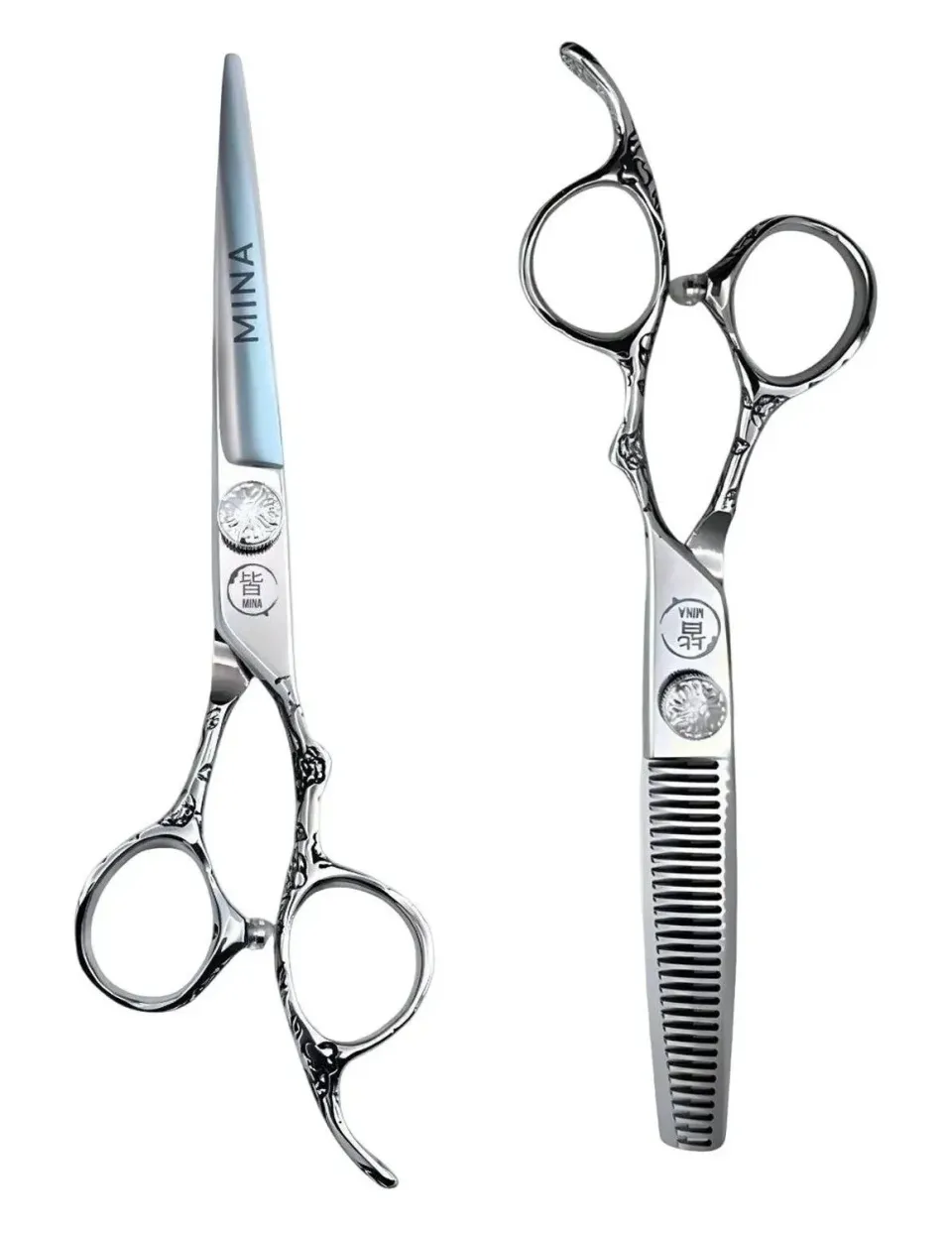
Choose the option you would actually order before comparing two scissor pages. A size button can change the cutting edge as well as the length. In a set, it may change the cutter while leaving the thinner fixed.
Read one complete purchase: model name, selected option, SKU, cutting hand, size and written contents. The examples below show where to find those details on JapanShears and what to reread when the selection changes.
Read the page in three places
If the page offers Options, start there. Read the complete button label, including a hand, blade description or second tool when one is named. Then open Specifications and check the selected fields and SKU. For a fixed tool without an option menu, start with Specifications. Where individual set details are recorded, Tools in this option separates the shears in that selection. Use Description for the menu explanation, other construction details and accessories.
| Place on the page | What to read |
|---|---|
| Options | The complete choice you are buying, with its selected price |
| Specifications | The stated hand, size, edge, handle and material where supplied, plus the SKU |
| Description | What changes across the menu and the individual tools in a set |
After changing an option, reread its specifications. Keep the SKU beside the full name in your notes; it helps the seller identify the choice you mean. A model-family photograph helps you recognise the tool, while the written option establishes the size and contents.
Keep nominal whole-tool length separate from blade length. For example, Yasaka’s SL-5.5 page gives 145 mm full length and 56 mm blade length. Those are separate measurements of that model. The size guide explains what to compare with a familiar shear.
Follow a changed size through the Ergo listing
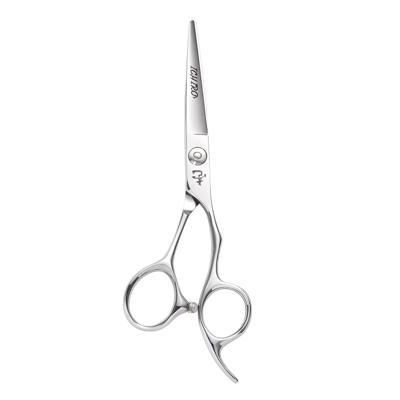
Open the 5.5-inch Ergo option, then compare its label with the six-inch option.
| Selected SKU | Nominal size | Listed edge | Hand and handle |
|---|---|---|---|
| ICH-ERGO-C55 | 5.5 inches | Convex slice | Right, offset |
| ICH-ERGO-C60 | 6.0 inches | Micro-serrated | Right, offset |
Changing size keeps the right-handed offset layout and changes the stated edge. If your educator’s brief requires a convex slice cutter, the longer option answers a different blade requirement. Settle the edge you need, then choose a suitable reach.
Retain the maker’s wording when moving to another family. Joewell’s blade reference, for example, separates its Standard flat single bevel blade from its convex constructions. The illustrated edge guide helps you read those terms without assigning one blade description to every model.
Read both tools in the Sakura II set
The Sakura II 5.5-inch set selects a cutter and a thinner. Keep a separate specification record for each tool.
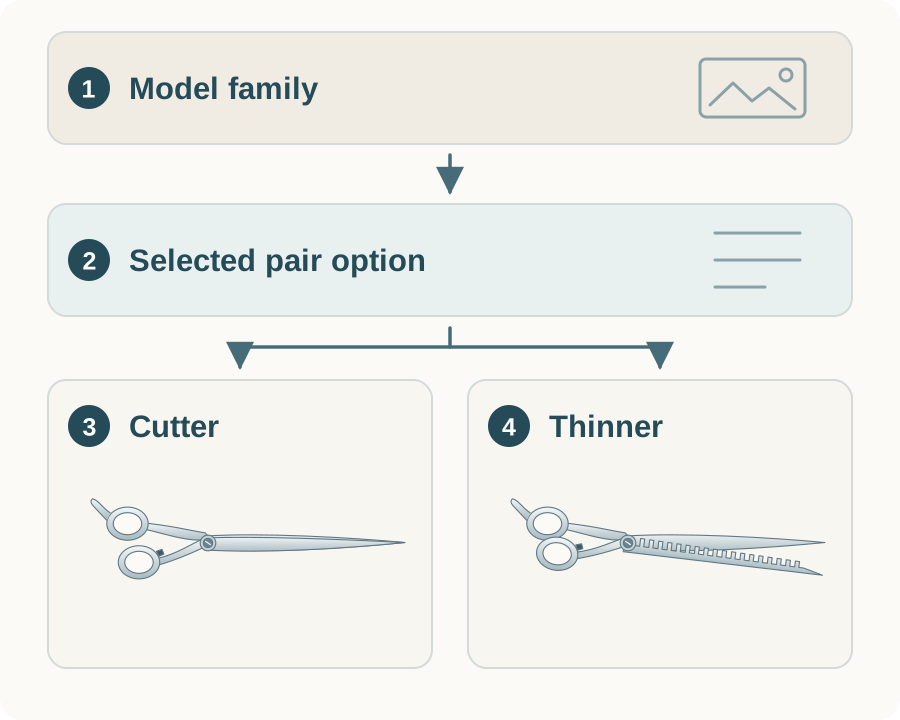 Open illustration at full size
 - Model familyUse the title and family photograph to identify the listing. They do not describe every available configuration.
- Selected optionRead the complete chosen label and SKU before its price and specification fields. Changing an option may change more than length.
- Cutter in the optionRead this tool’s own hand, nominal length and edge. Do not copy those fields to the thinner.
- Thinner in the optionRead its own hand, nominal length and tooth description. Keep an unstated field open rather than borrowing it from another listing.
Read the complete option name and Tools in this option in Specifications. The Sakura II panel follows the selected cutter while keeping the thinner separate:
| Tool in MIN-SAK-S55 | Nominal size | Listed construction |
|---|---|---|
| Cutter | 5.5 inches | Convex edge |
| Thinner | 6.0 inches | 30 teeth |
Both tools are right-handed with offset handles and listed SUS440C steel. The selector changes the cutter length; the thinner remains six inches with 30 teeth across this menu.
Write a separate line for each tool in your kit notes. That makes it easier to decide whether both fit your work and to identify either one in a later service enquiry. The Sakura II component guide develops that buying question. A set price covers its written contents, so compare another complete set or a deliberately chosen single tool.
Keep an unlisted field as a question
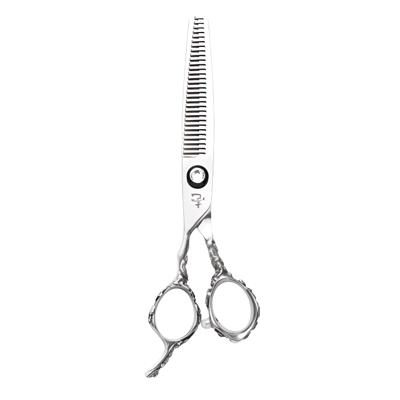
The Rose Lefty thinner supplies a clear hand, length, offset handle and tooth description. Its listing does not name a steel grade. The separate Rose Lefty cutter’s material cannot fill that field for this thinner.
If the grade affects your choice, ask about this exact thinner. If you are comparing tooth design, work with the stated 30 V-shaped teeth while keeping the material question open. A photograph or shared family name cannot supply the answer.
| Wording in a comparison | How to use it |
|---|---|
| Not listed | The comparison has no stated value for that field. Ask if it changes your decision. |
| Not applicable | The field does not describe this tool; tooth count on a plain-edge cutter is one example. |
| A stated value, such as 30 teeth | Compare that particular specification. It does not supply an unstated cut ratio. |
Use the steel library for material terms and the scissor glossary for unfamiliar fields. You can resolve one important question without treating the whole listing as unusable.
Ask about the exact option
Name the page, full model and selected SKU, then ask for the one detail that affects your choice. A message could read:
I am looking at the Ichiro Rose Lefty Thinning Scissors page, SKU ICH-ROSE-LT60. Can you confirm the steel grade stated for this six-inch left-handed thinner? I need that detail before comparing it with another model.
Use the contact form with the page address and keep the reply with your shortlist.
Once the necessary fields are clear, use the Shear Finder to compare its selected range by tool, hand, nominal length and budget. Its notes help you read the current pair, and you can keep a link to the exact options. Check their current prices, availability and contents on the product pages before ordering.